

Sign in
After OBS opens, the Facebetter panel sits on the right. If you do not see it, use Tools → Facebetter. The panel can stay docked next to the audio mixer. Before you sign in, the middle of the panel is the sign-in page.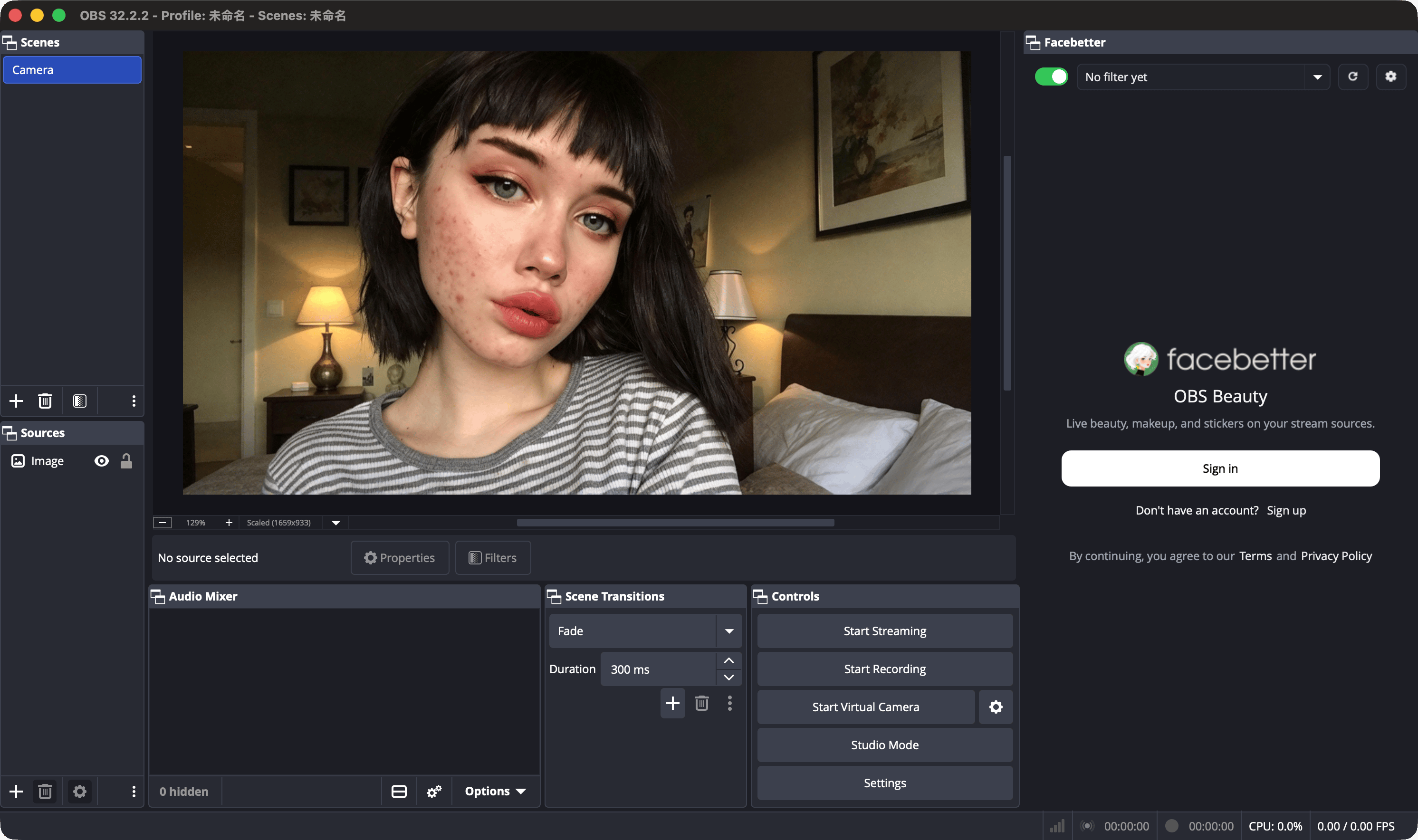
- Click Sign in. If you do not have an account, click Sign up underneath.
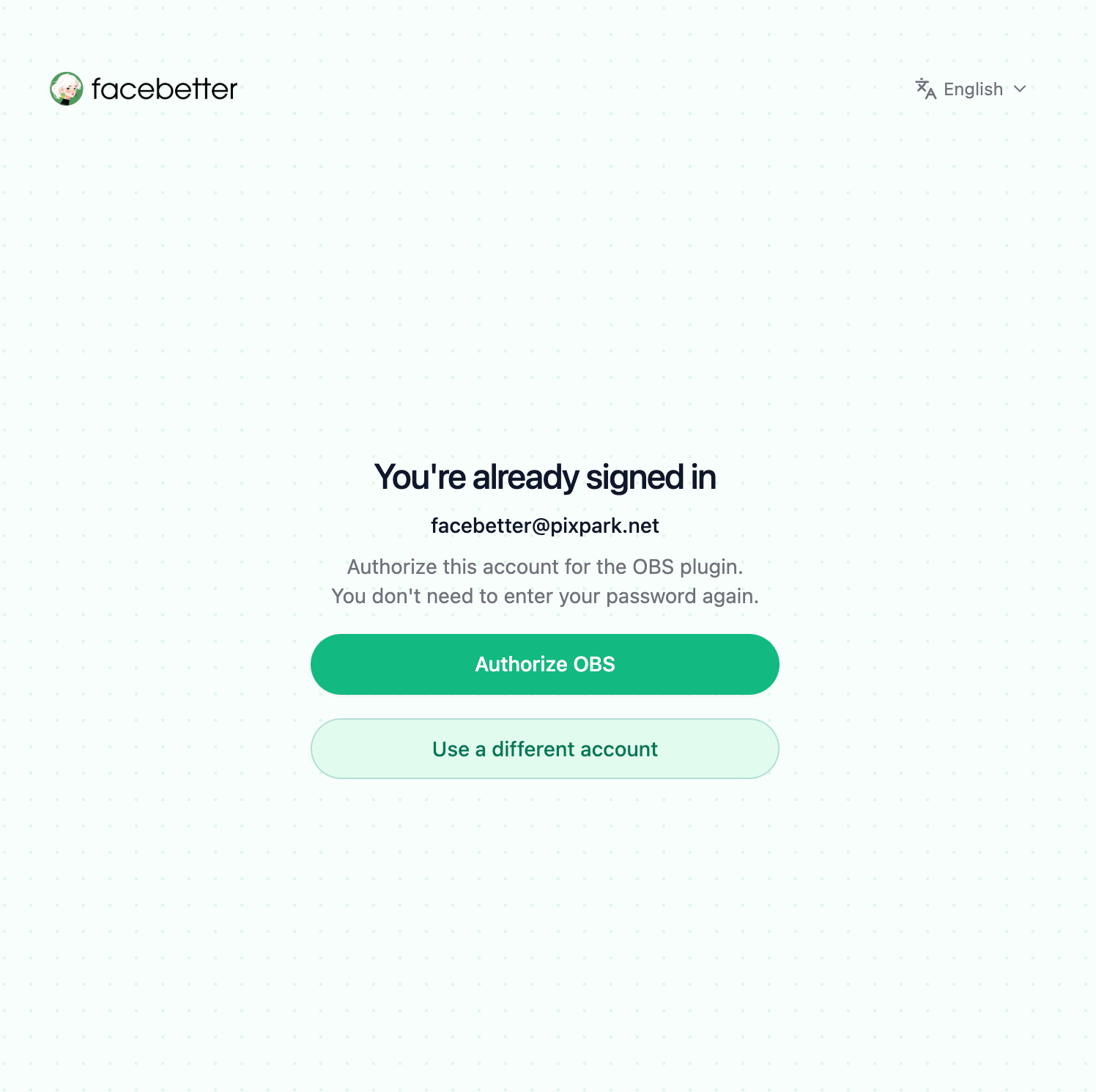
- The system browser opens the Facebetter authorization page. If you are already signed in on the website, the page shows that account and does not ask for the password again.
- Click Authorize OBS. To use another account, click Use a different account.
facebetter.net watermark.
Add the filter to a source
Signing in does not beautify the picture. If the top of the panel says No filter yet, the sliders stay locked. Add the filter to a source first. The source does not have to be a camera. An image, a video, or a media source works the same way.Open Filters for that source
In the Sources list, right-click the item you want to process and choose Filters.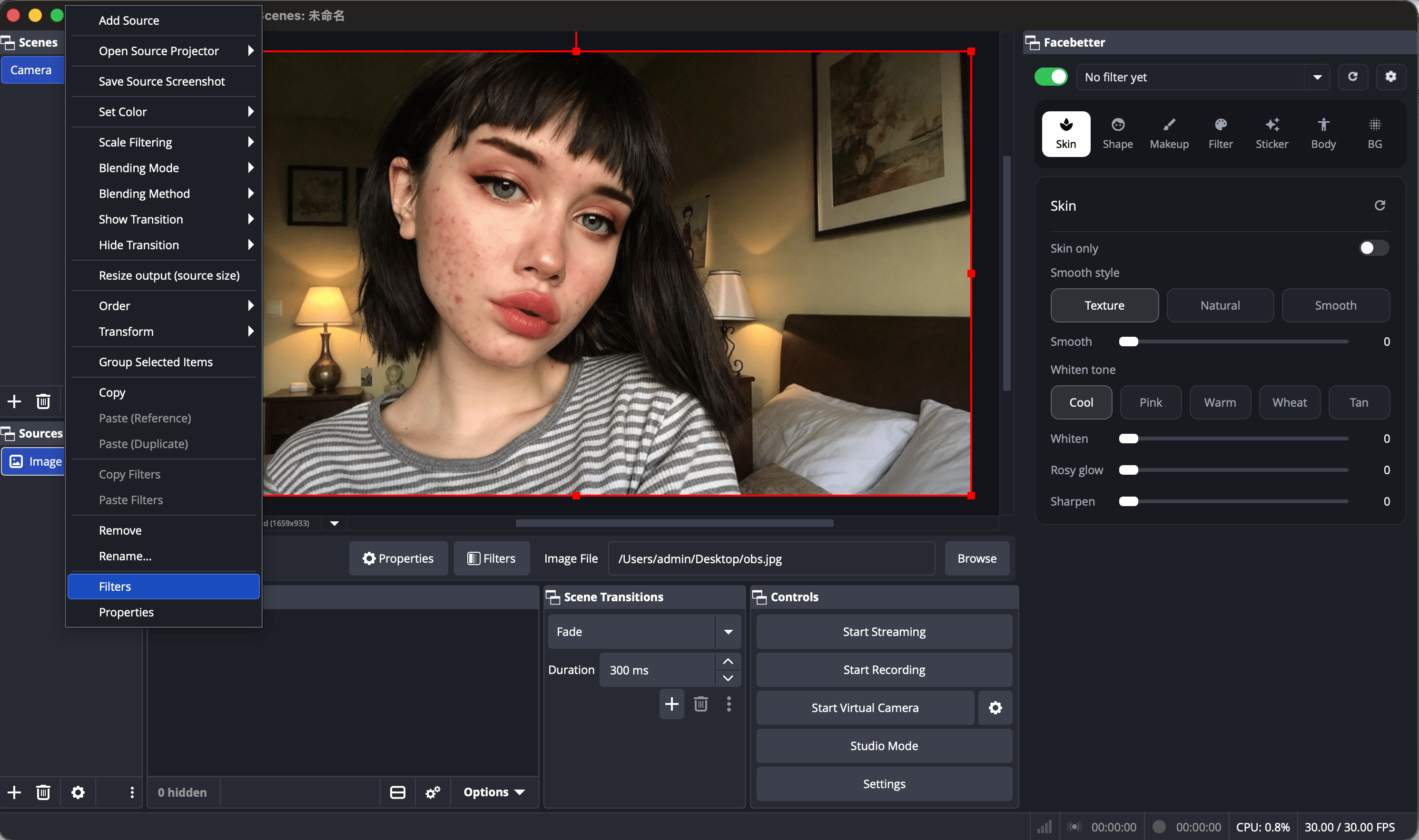
Add Facebetter Beauty
At the bottom left of the Filters window, click +, choose Facebetter Beauty, confirm the name, and close the window.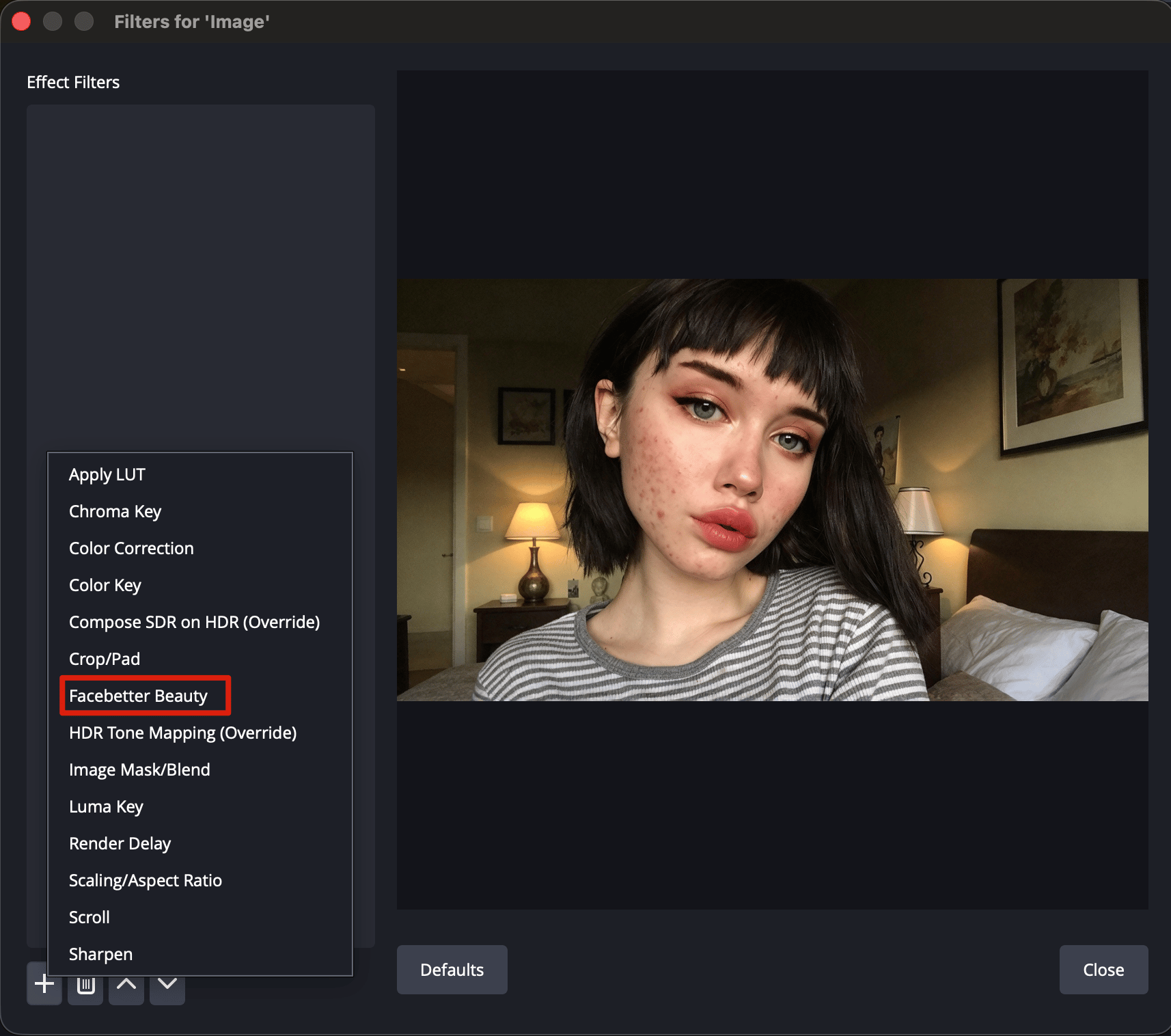
- The Facebetter panel comes forward. To open it later, use Tools → Facebetter.
- The source menu at the top of the panel changes from “No filter yet” to that source, or to All sources. The sliders can be dragged.