

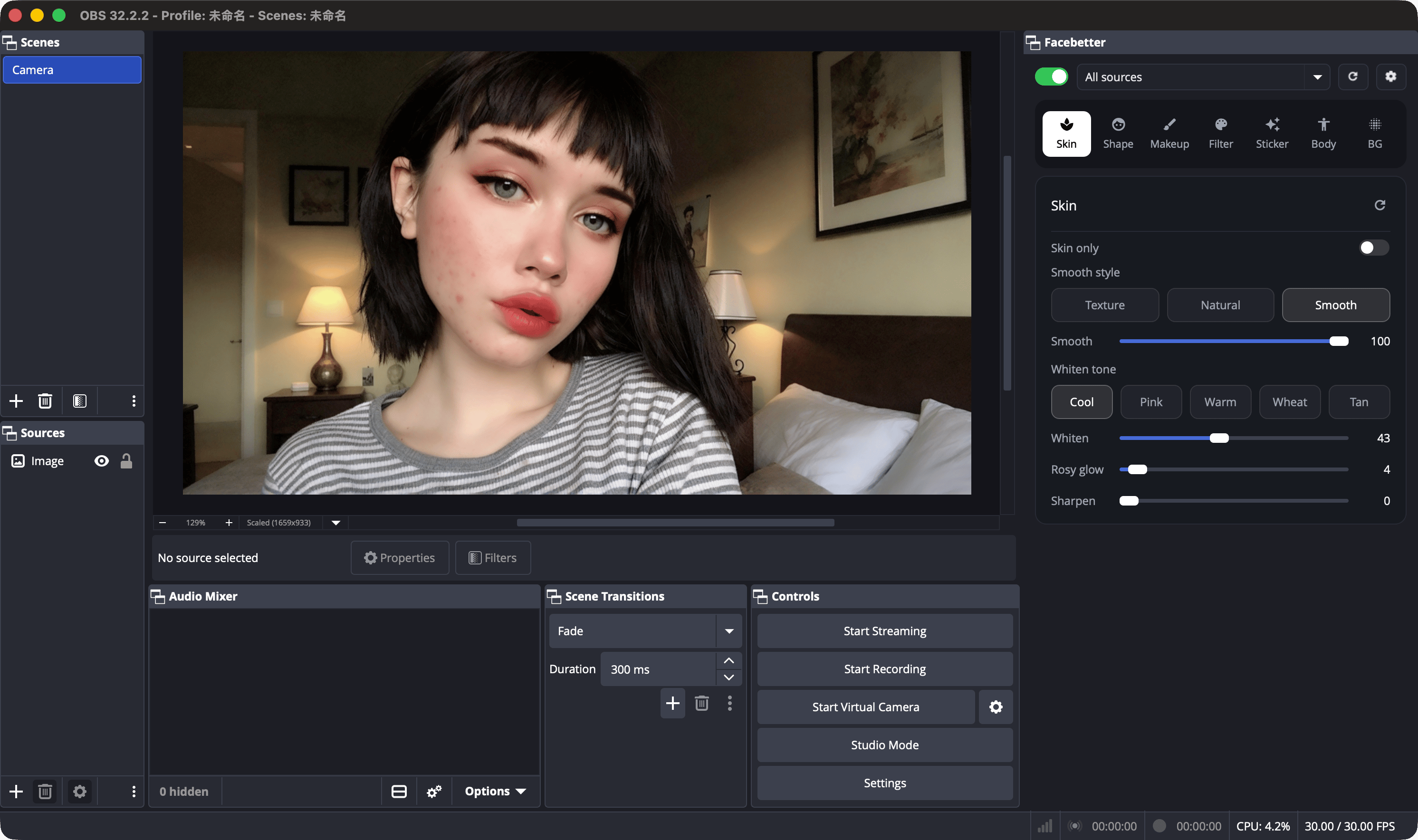
- Switch: compare on and off. Off shows the original preview. Turn it back on before you go live.
- Source menu: one source that already has the filter, or All sources. All sources writes the change onto every Facebetter filter.
- Reset: return the current page to its defaults.
- Gear: settings. Choose whether the panel opens when OBS starts, and open the account and subscription page.
The panel language follows OBS. Simplified Chinese, Traditional Chinese, English, Japanese, Korean, Portuguese, Spanish, and German have their own interface. Other OBS languages show English.
Remove the watermark
The free plan includes every effect above, and the output has a watermark. Pro removes the watermark and can be used on 2 devices.- Monthly: $8.99
- Yearly: $69