> ## Documentation Index
> Fetch the complete documentation index at: https://docs.facebetter.net/llms.txt
> Use this file to discover all available pages before exploring further.
# 在 Mac 上安装
> 在 Mac 上安装 Facebetter OBS 插件。
Facebetter 是 OBS Studio 的实时美颜滤镜。美肤、美型、美妆、滤镜、贴纸、美体和背景都在这台电脑上处理。
它不会自动作用到整个 OBS。要在具体的画面源上加上 **Facebetter 美颜**,右侧面板里的滑块才会生效。摄像头、图片、视频都可以。
OBS 里的截图是英文界面。中文 OBS 里,对应名称是:Sources「来源」、Filters「滤镜」、Facebetter Beauty「Facebetter 美颜」、Sign in「登录」。
开始之前确认两件事:
* macOS 13 或更高。Intel Mac 用 Intel 版 OBS,Apple 芯片用 Apple 版 OBS。
* OBS Studio 28 或更高,并且是 64 位。
下载页面:[facebetter.net/zh/obs](https://facebetter.net/zh/obs)。Windows 见 [在 Windows 上安装](/zh/obs/install-windows)。
## 下载并解压
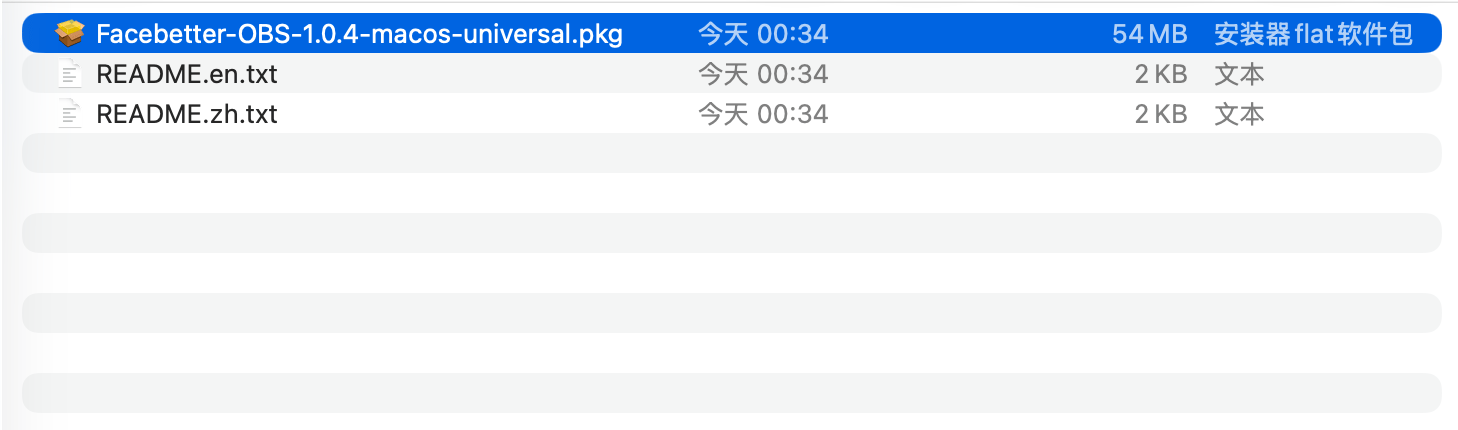
从上面的页面下载 macOS 安装包,得到一个 zip。双击解压,里面是安装器 `Facebetter-OBS-*-macos-universal.pkg`,以及中英文说明 `README.zh.txt`、`README.en.txt`。
 如果 OBS 正在运行,先完全退出。菜单栏里的 OBS 图标也要退出。装的时候 OBS 开着,这次启动不会加载新插件。
## 遇到「未打开」提示
这个安装包还没有做苹果公证。第一次双击 pkg,系统经常会拦住,标题是「未打开」,并建议移到废纸篓。
如果 OBS 正在运行,先完全退出。菜单栏里的 OBS 图标也要退出。装的时候 OBS 开着,这次启动不会加载新插件。
## 遇到「未打开」提示
这个安装包还没有做苹果公证。第一次双击 pkg,系统经常会拦住,标题是「未打开」,并建议移到废纸篓。
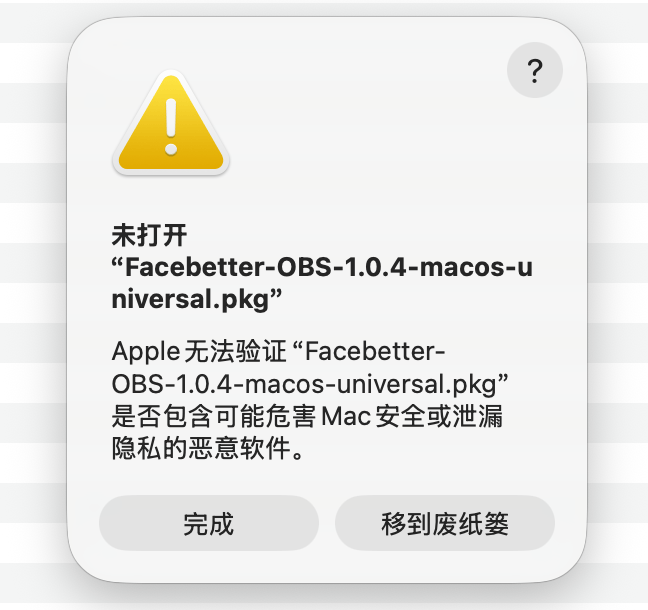 点「完成」,不要点「移到废纸篓」。
然后:
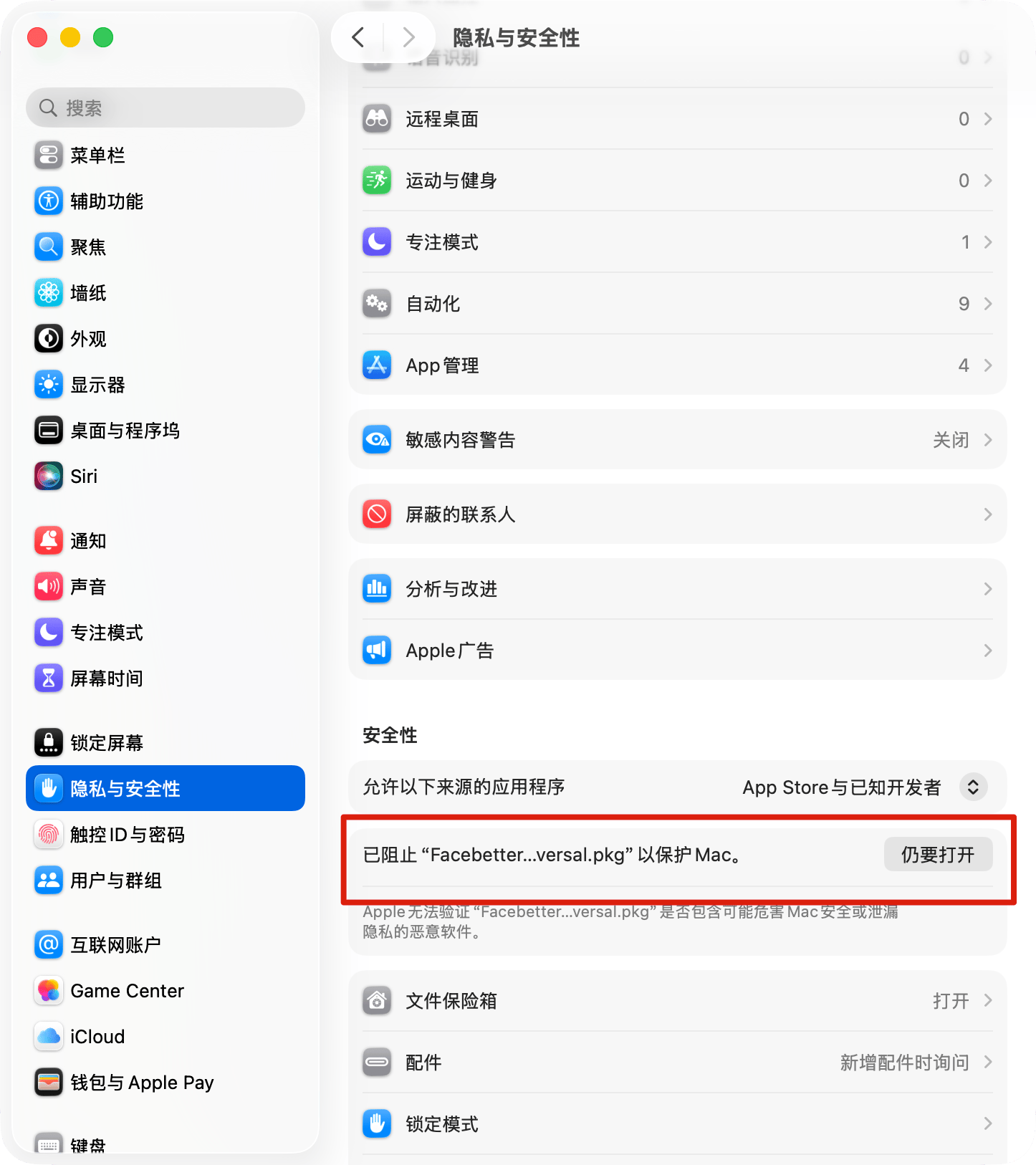
1. 打开「系统设置」→「隐私与安全性」。
2. 滑到「安全性」一节,找到「已阻止 Facebetter…pkg 以保护 Mac」。
3. 点右边的「仍要打开」。
点「完成」,不要点「移到废纸篓」。
然后:
1. 打开「系统设置」→「隐私与安全性」。
2. 滑到「安全性」一节,找到「已阻止 Facebetter…pkg 以保护 Mac」。
3. 点右边的「仍要打开」。
 确认之后,安装器会继续打开。也可以按住 Control,点一下 pkg,在菜单里选「打开」,再在确认框里点一次「打开」。
## 按安装器提示安装
安装器第一页是介绍。看完点「继续」。
确认之后,安装器会继续打开。也可以按住 Control,点一下 pkg,在菜单里选「打开」,再在确认框里点一次「打开」。
## 按安装器提示安装
安装器第一页是介绍。看完点「继续」。
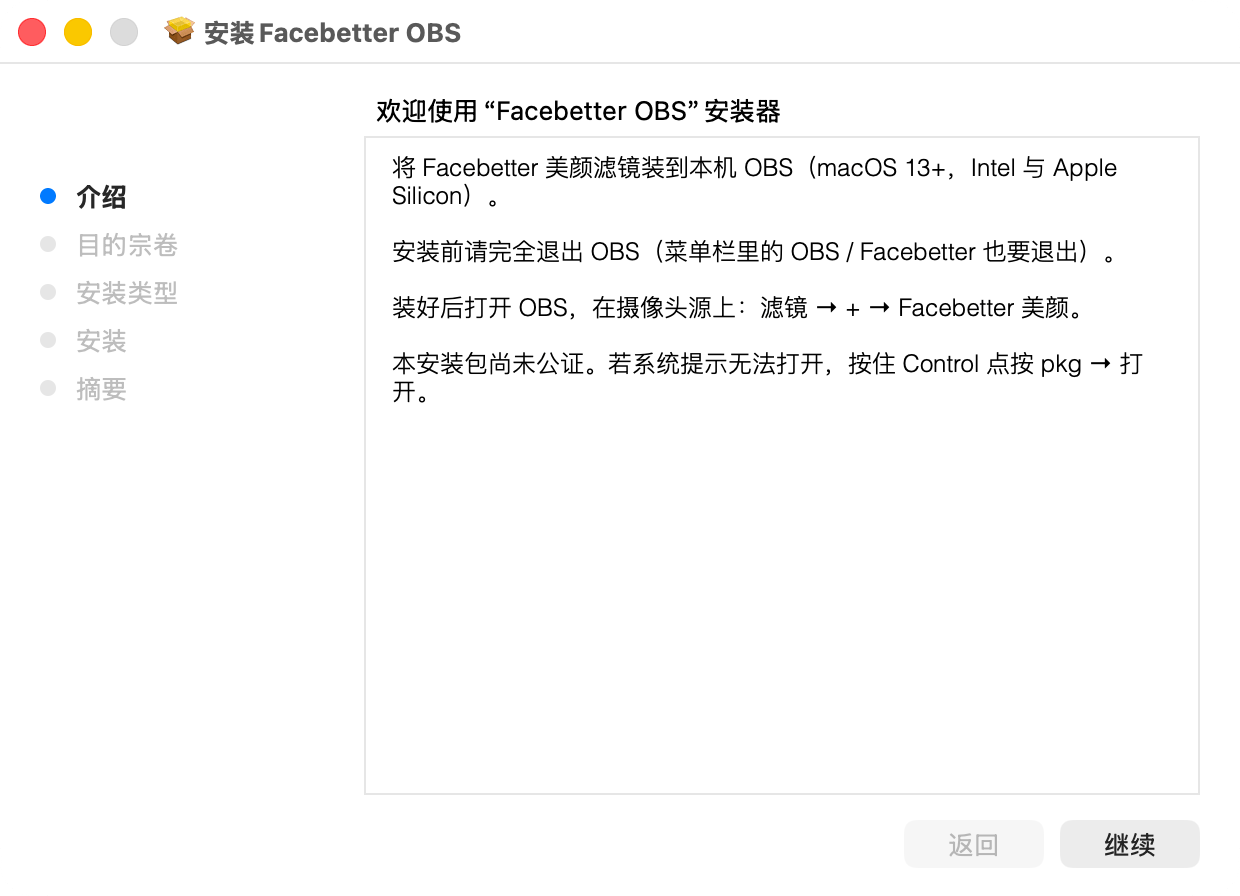 中间的磁盘确认直接点「继续」。到「安装类型」时,保持默认,点右下角「安装」。不用点「更改安装位置」。安装器会装进当前用户的个人文件夹,这台 Mac 上的其他账号不受影响。
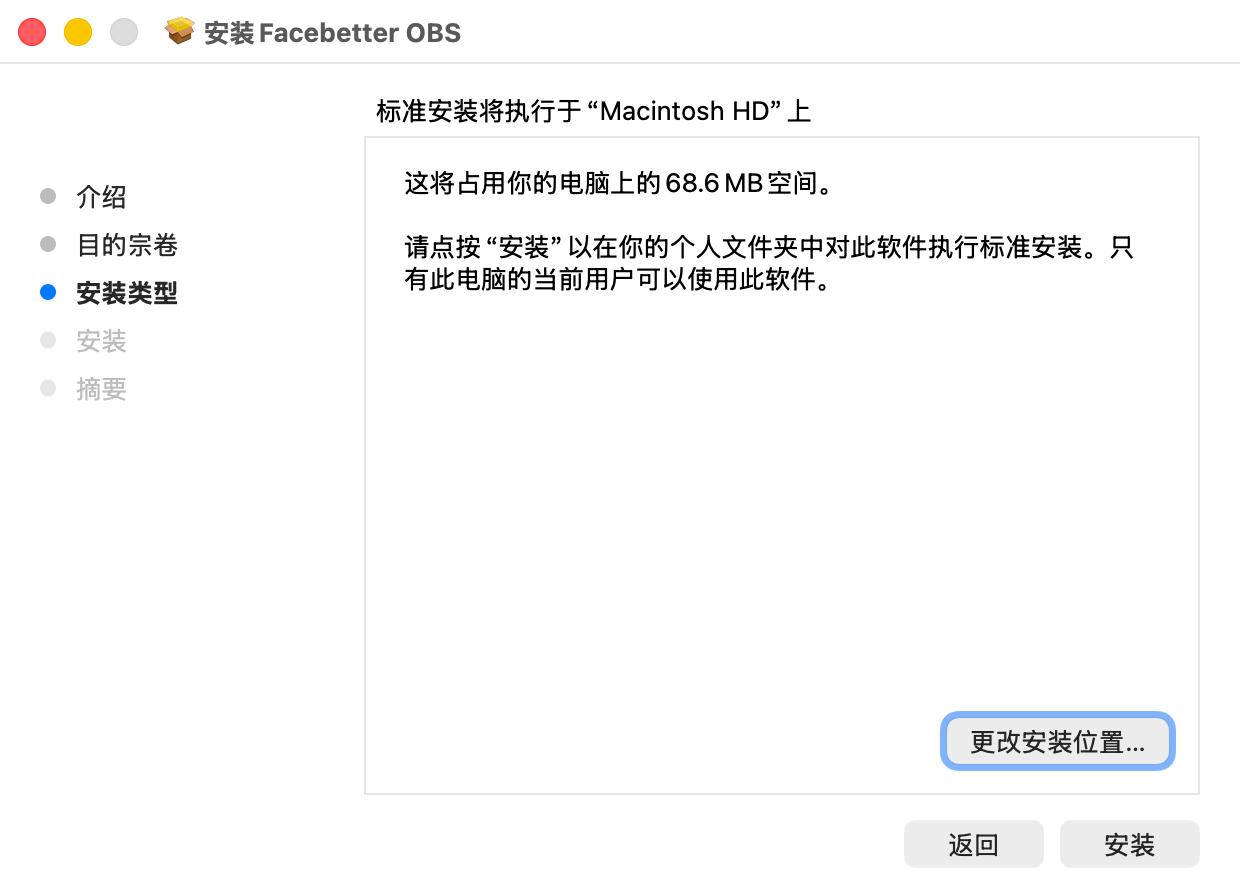 系统可能再问一次登录密码或触控 ID,通过后等待安装结束。插件位置是:
```text theme={null}
~/Library/Application Support/obs-studio/plugins/facebetter.plugin
```
装完再打开 OBS,然后 [登录并添加滤镜](/zh/obs/login)。
This documentation is built and hosted on [Mintlify](https://mintlify.com), a developer documentation platform.
系统可能再问一次登录密码或触控 ID,通过后等待安装结束。插件位置是:
```text theme={null}
~/Library/Application Support/obs-studio/plugins/facebetter.plugin
```
装完再打开 OBS,然后 [登录并添加滤镜](/zh/obs/login)。
This documentation is built and hosted on [Mintlify](https://mintlify.com), a developer documentation platform.