> ## Documentation Index
> Fetch the complete documentation index at: https://docs.facebetter.net/llms.txt
> Use this file to discover all available pages before exploring further.
# Install on Mac
> Install the Facebetter OBS plugin on a Mac.
Facebetter is a realtime beauty filter for OBS Studio. Skin, face shape, makeup, color filters, stickers, body, and background are processed on this computer.
It does not affect the whole OBS window by itself. Add **Facebetter Beauty** to the source you want, and the sliders in the side panel start working. A camera, image, or video source all work.
The OBS screenshots on these pages use the English interface. The installer screenshots use Chinese macOS. The English names of those buttons are in the steps below.
Before you start:
* macOS 13 or later. Use the Intel build of OBS on an Intel Mac, and the Apple silicon build on Apple silicon.
* OBS Studio 28 or later, 64-bit.
Download: [facebetter.net/obs](https://facebetter.net/obs). For Windows, see [Install on Windows](/obs/install-windows).
## Download and unzip
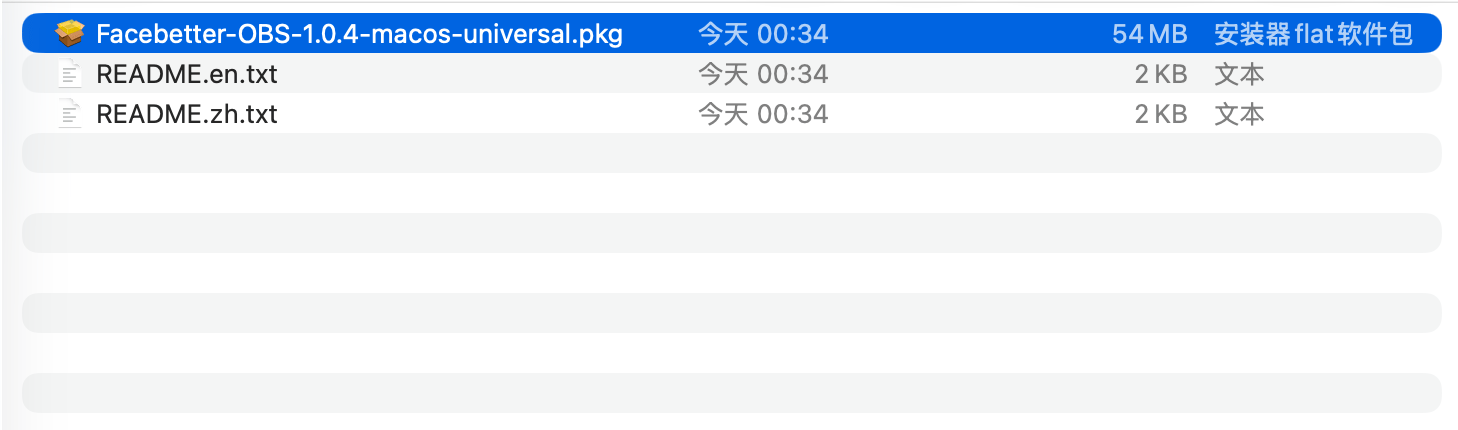
Download the macOS zip and double-click it. Inside are the installer `Facebetter-OBS-*-macos-universal.pkg` and two short guides, `README.zh.txt` and `README.en.txt`.
 Quit OBS completely first, including the OBS icon in the menu bar. If OBS is running during install, that session will not load the new plugin.
## If macOS says the package cannot be opened
The package is not notarized yet. The first double-click is often blocked. The dialog title is “未打开” (the package was not opened) and one button is “移到废纸篓” (Move to Trash).
Quit OBS completely first, including the OBS icon in the menu bar. If OBS is running during install, that session will not load the new plugin.
## If macOS says the package cannot be opened
The package is not notarized yet. The first double-click is often blocked. The dialog title is “未打开” (the package was not opened) and one button is “移到废纸篓” (Move to Trash).
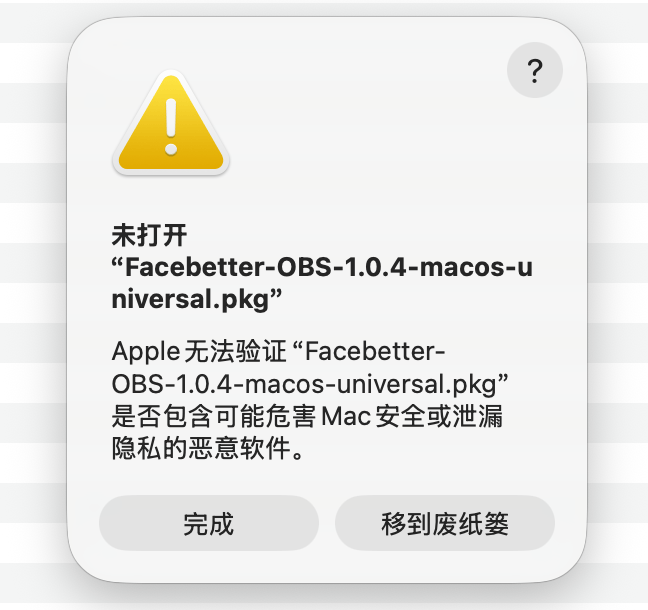 Click Done (完成). Do not click Move to Trash (移到废纸篓).
Then:
1. Open System Settings → Privacy & Security (系统设置 → 隐私与安全性).
2. Scroll to the Security section and find the row that says Facebetter was blocked to protect the Mac.
3. Click Open Anyway (仍要打开).
Click Done (完成). Do not click Move to Trash (移到废纸篓).
Then:
1. Open System Settings → Privacy & Security (系统设置 → 隐私与安全性).
2. Scroll to the Security section and find the row that says Facebetter was blocked to protect the Mac.
3. Click Open Anyway (仍要打开).
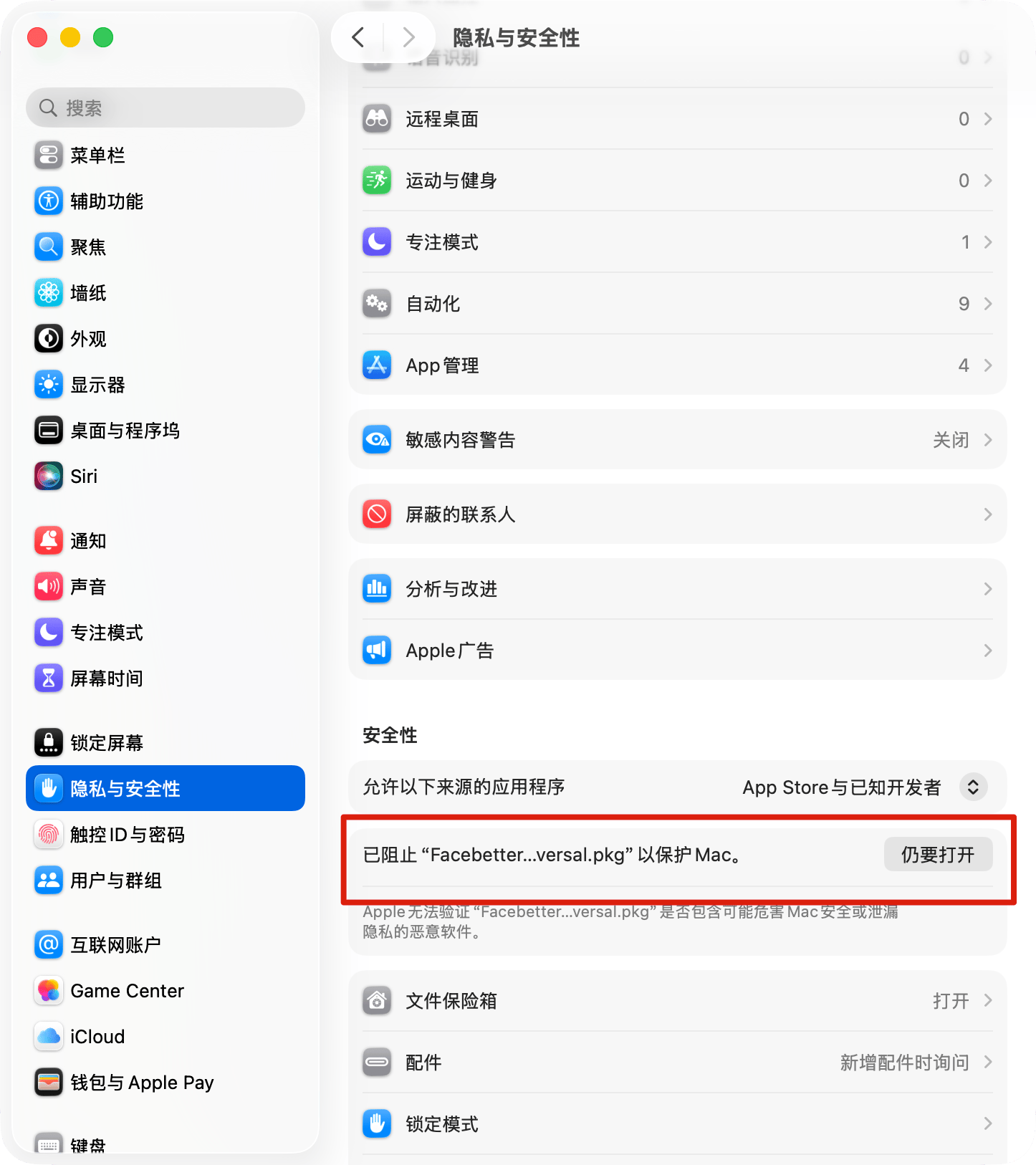 After you confirm, the installer continues. You can also Control-click the pkg, choose Open, and click Open again in the confirmation dialog.
## Finish the installer
The first installer page is the introduction. Click Continue (继续).
After you confirm, the installer continues. You can also Control-click the pkg, choose Open, and click Open again in the confirmation dialog.
## Finish the installer
The first installer page is the introduction. Click Continue (继续).
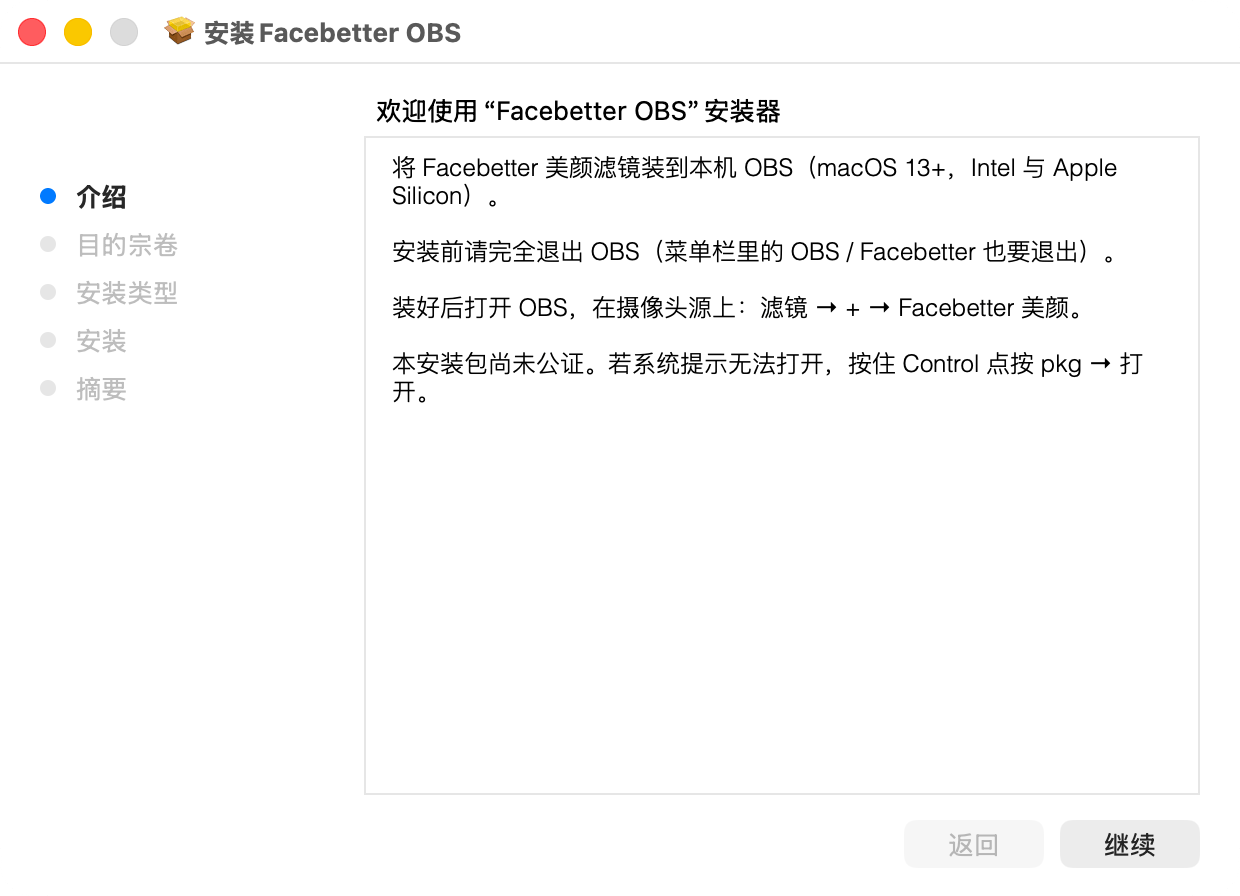 On the disk confirmation page, click Continue again. On Installation Type (安装类型), keep the default and click Install (安装). Do not click Change Install Location (更改安装位置). The plugin is installed for the current user only. Other accounts on this Mac are left alone.
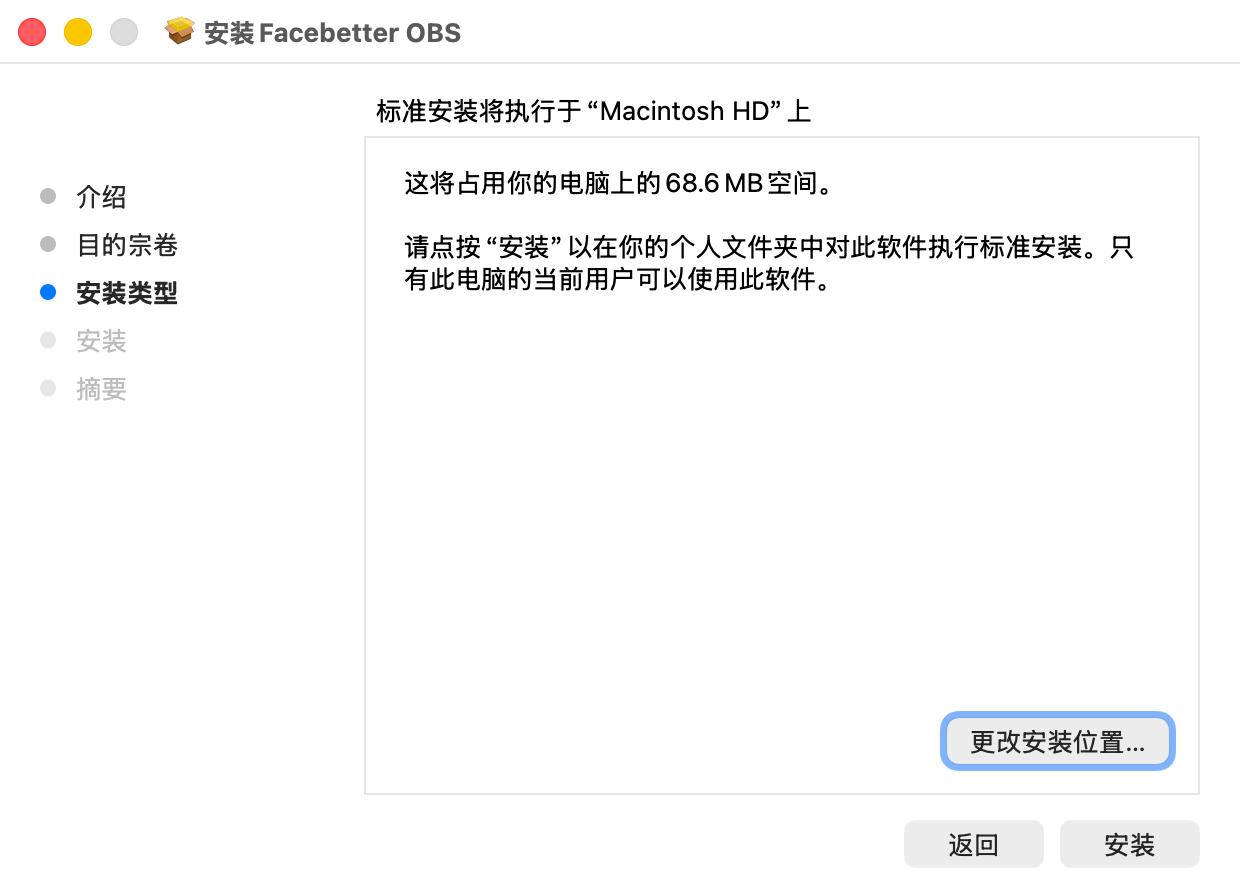 macOS may ask for your password or Touch ID. When it finishes, the plugin is here:
```text theme={null}
~/Library/Application Support/obs-studio/plugins/facebetter.plugin
```
Open OBS, then [sign in and add the filter](/obs/login).
This documentation is built and hosted on [Mintlify](https://mintlify.com), a developer documentation platform.
macOS may ask for your password or Touch ID. When it finishes, the plugin is here:
```text theme={null}
~/Library/Application Support/obs-studio/plugins/facebetter.plugin
```
Open OBS, then [sign in and add the filter](/obs/login).
This documentation is built and hosted on [Mintlify](https://mintlify.com), a developer documentation platform.