> ## Documentation Index
> Fetch the complete documentation index at: https://docs.facebetter.net/llms.txt
> Use this file to discover all available pages before exploring further.
# Quick Start
> Run Android Sample Application
## Environment Requirements
* **Android Version**: `Android 5.0` and above
* **Development Language**: `Java`
* **Architecture Support**: `armeabi-v7a`, `arm64-v8a`
## Get Sample Source Code
Clone the [GitHub repository](https://github.com/pixpark/facebetter-sdk) locally, open the project in the `android/demo` directory using Android Studio.
```bash theme={null}
git clone https://github.com/pixpark/facebetter-sdk.git
```
## Configure Application Information and Keys
### Bind Application Package Name
Follow the instructions on [this page](/intro/enable-service#bind-application-information) to bind your Android application package name (App Package Name) in the console, for example: `com.example.app`
### Get AppID and AppKey
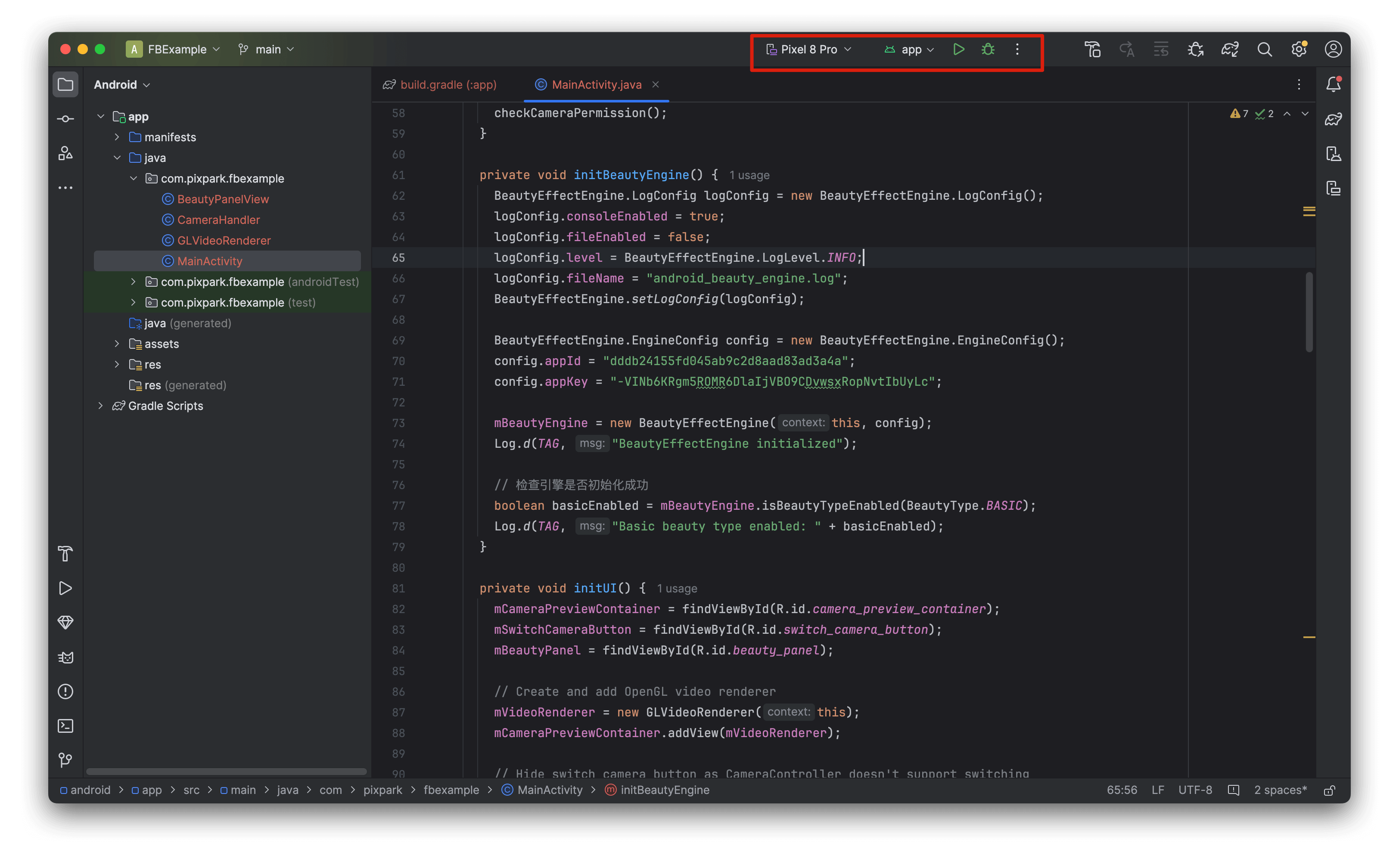
Follow the instructions on [this page](/intro/enable-service#get-appid-and-appkey) to get your `appid` and `appkey`. Open `MainActivity.java` in the project and modify the `appid` and `appkey`.
```java theme={null}
BeautyEffectEngine.EngineConfig config = new BeautyEffectEngine.EngineConfig();
config.appId = "your appId";
config.appKey = "your appkey";
// Optional: If licenseJson is provided, license data verification takes priority, appId and appKey are not required
// config.licenseJson = "your license json string";
mBeautyEngine = new BeautyEffectEngine(this, config);
```
`licenseJson` takes priority over `appId` + `appKey`. For offline download and details, see [License & Auth](/intro/license).
## Run the Project
Sync the project in Android Studio, select a running device, and run it.